Unable to load script. Make sure you are either running Metro or that your bundle index.android.bundle is packaged correctly for release
1. Problems
If you're using React Native with Metro Bundler, you might encounter the following error when using Proxyman and Charles Proxy:
Unable to load script. Make sure you're either running Metro (run 'npx react-native start') or that your bundle index.android.bundle is packaged correctly for release.
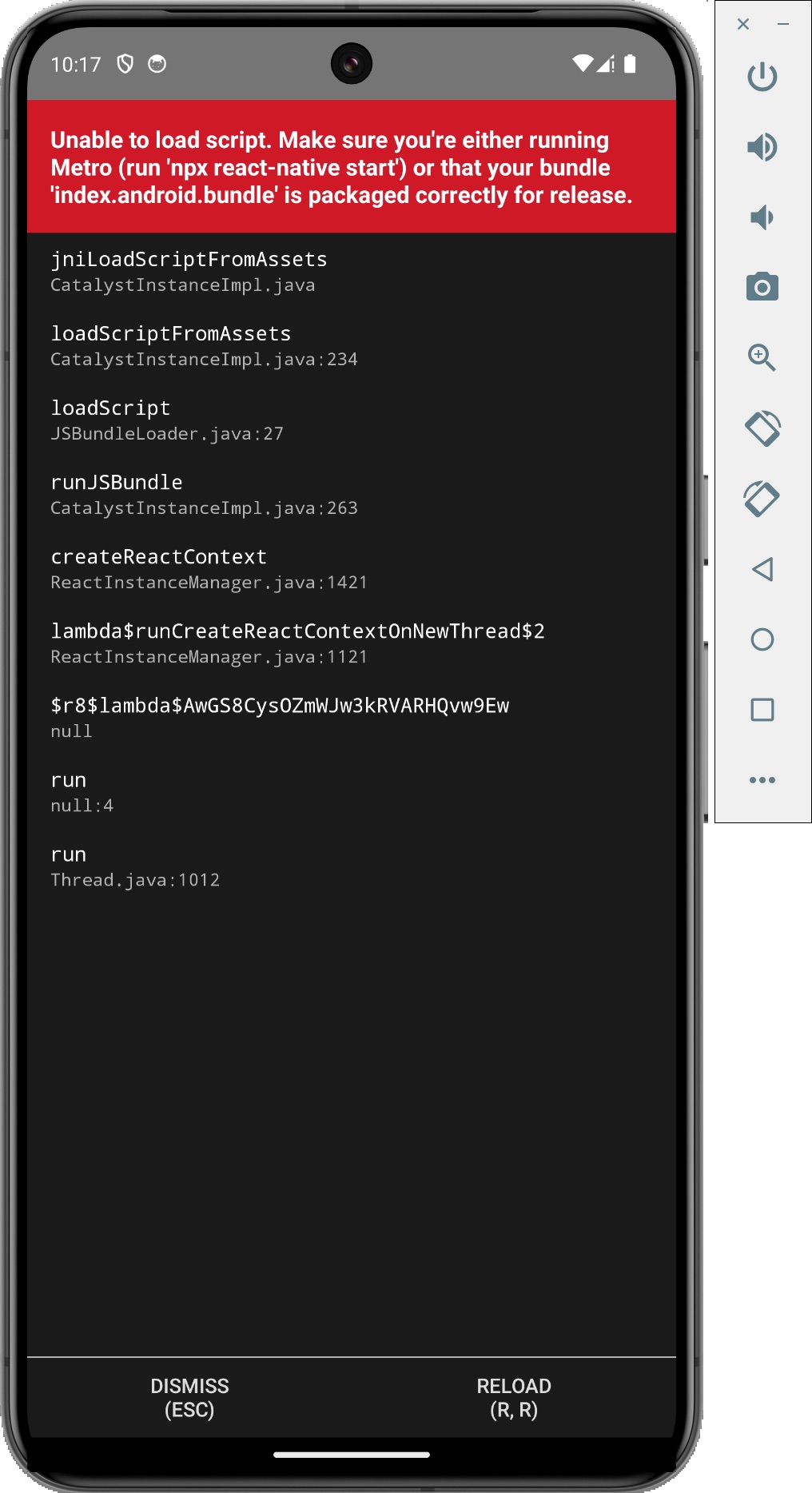
This error occurs because the Metro Bundler tries to connect to 10.0.2.2:8081, but Proxyman and Charles Proxy can't handle the request properly.
2. ✅ Solutions (Recommended)
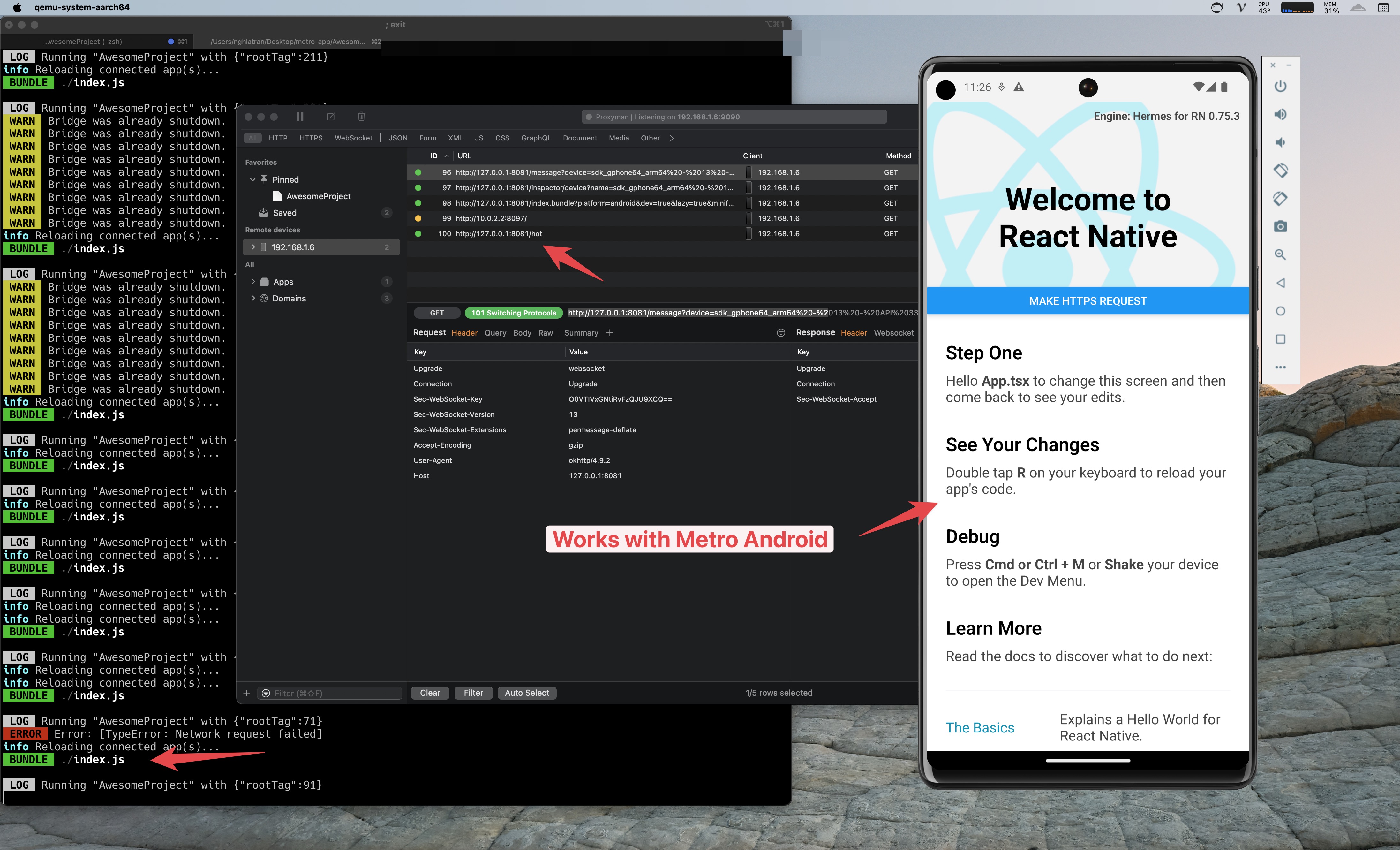
- Download the current Proxyman release. The Metro fix has been included since Proxyman 5.9.0, so an old beta build is no longer needed.
- Use the Android setup guide to set the emulator proxy. If Metro still cannot load, add the local Metro address to the proxy bypass list so bundle traffic stays between the emulator and your Mac.
- Restart Metro and reload the app after changing the proxy.
3. Solutions (Not Recommended)
- By manaully mapping the Remote Tool, from
10.0.2.2:8081to127.0.0.1:8081. It will fix the issue. - Here is the step to do that:
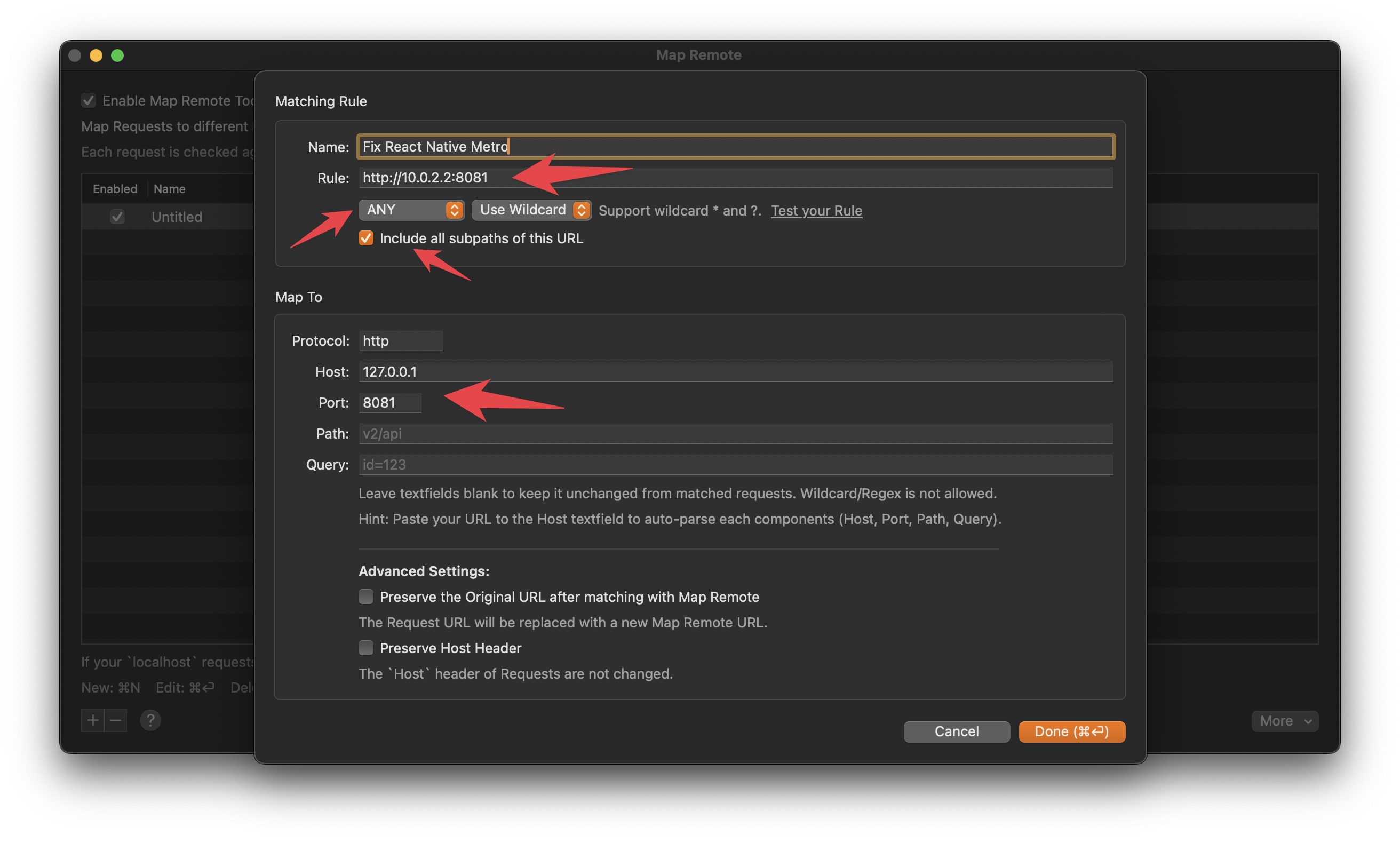
- Open Proxyman -> Tools menu -> Map Remote
- Create new mapping with the following config:
- Rule: http://10.0.2.2:8081
- Check on "Include all subpath"
- Select ANY Method
- Protocol: http
- Host: 127.0.0.1
- Port: 8081
- Done
- Certificate menu -> Install for Android -> Emulator -> Click on Override Emulator -> It auto set the Proxy and install the certificate in 1 click
- Reload your Metro bundler
- Done: No Metro Bundler error ✅
4. Solution for Charles Proxy
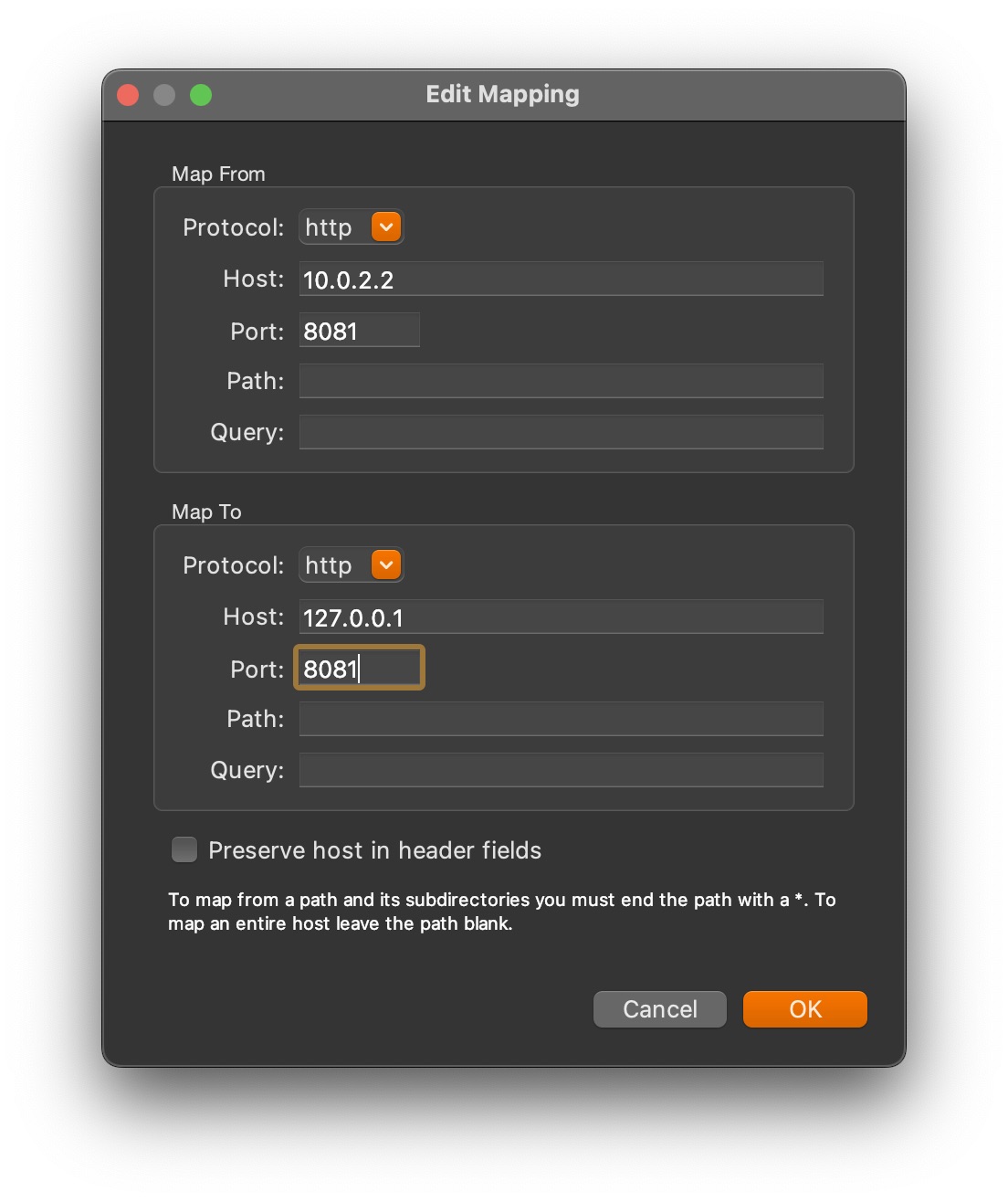
It's similar to Proxyman, but you need to manually map the Remote Tool from 10.0.2.2:8081 to 127.0.0.1:8081. You can the Map Remote Tool in the Tools menu -> Map Remote...
5. How to dectypy HTTPS request/response from Android Emulator (React Native with Metro Bundler)
- Open Proxyman -> Certificate menu -> Install for Android -> Emulator -> Click on
Override Emulator-> It auto set the Proxy and install the certificate in 1 click
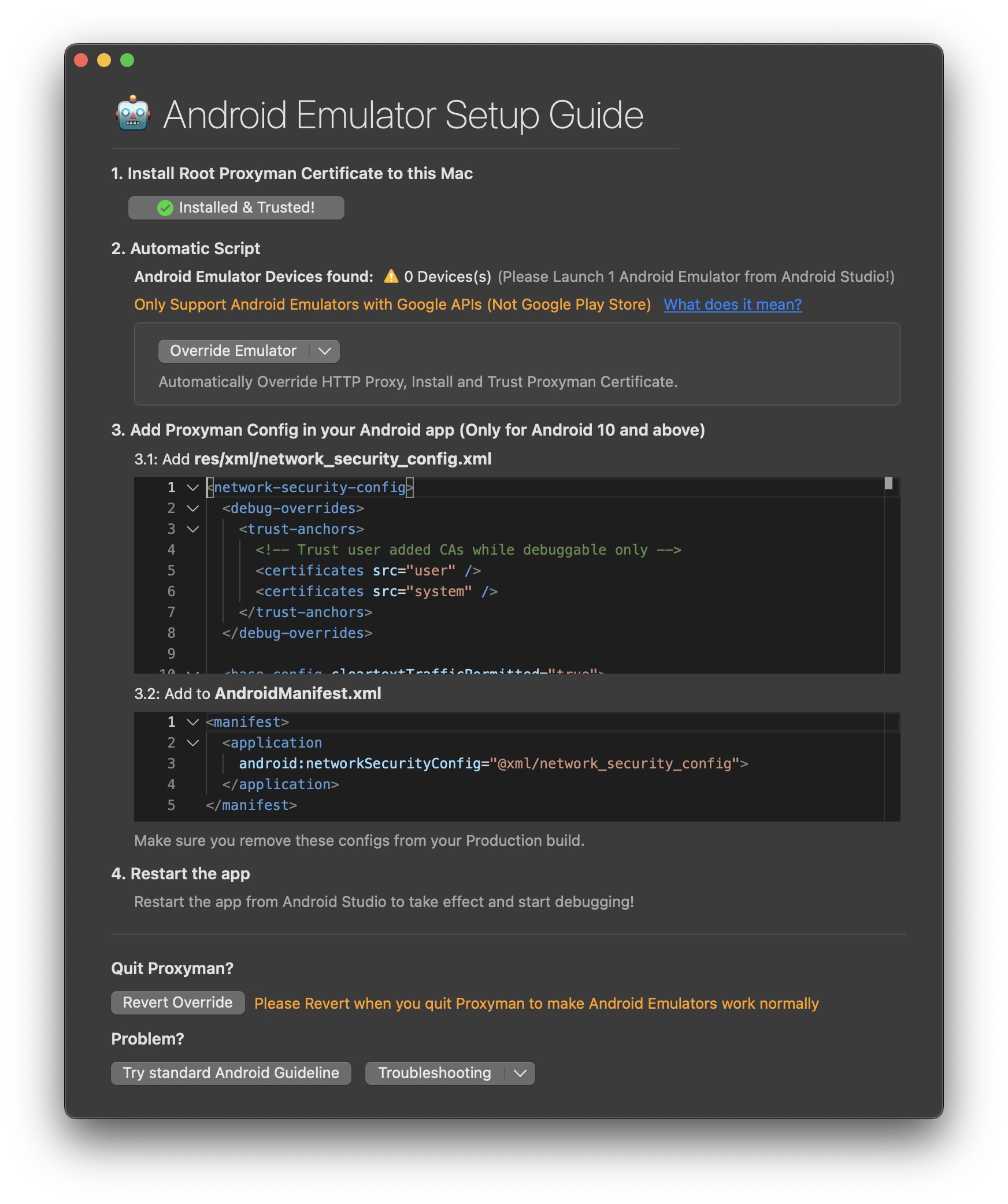
- Open Android Studio -> Import -> Select the
androidfolder inside your project -> Wait until Android Studio finishes loading all the dependencies - Inside the
app/src/main/resfolder -> Create new folder namedxml-> Create new file namednetwork_security_config.xml - Add the following code to
network_security_config.xml:
<network-security-config>
<debug-overrides>
  <trust-anchors>
    <!-- Trust user added CAs while debuggable only -->
    <certificates src="user" />
    <certificates src="system" />
  </trust-anchors>
</debug-overrides>

<base-config cleartextTrafficPermitted="true">
  <trust-anchors>
    <certificates src="system" />
    <certificates src="user" />
  </trust-anchors>
</base-config>
</network-security-config>- Open
AndroidManifest.xml-> Add the following code to theapplicationtag:
android:networkSecurityConfig="@xml/network_security_config"
- Done. Try to reload your Metro bundler -> Start capturing SSL traffic
6. How to dectypy HTTPS request/response from iOS Simulator (React Native with Metro Bundler)
- It's much simpler than Android, because iOS doesn't need extra configuration to capture HTTPS traffic from the simulator
- Open Proxyman -> Certificate menu -> Install for iOS -> Simulator -> Click on
Override Simulator-> It auto set the Proxy and install the certificate in 1 click
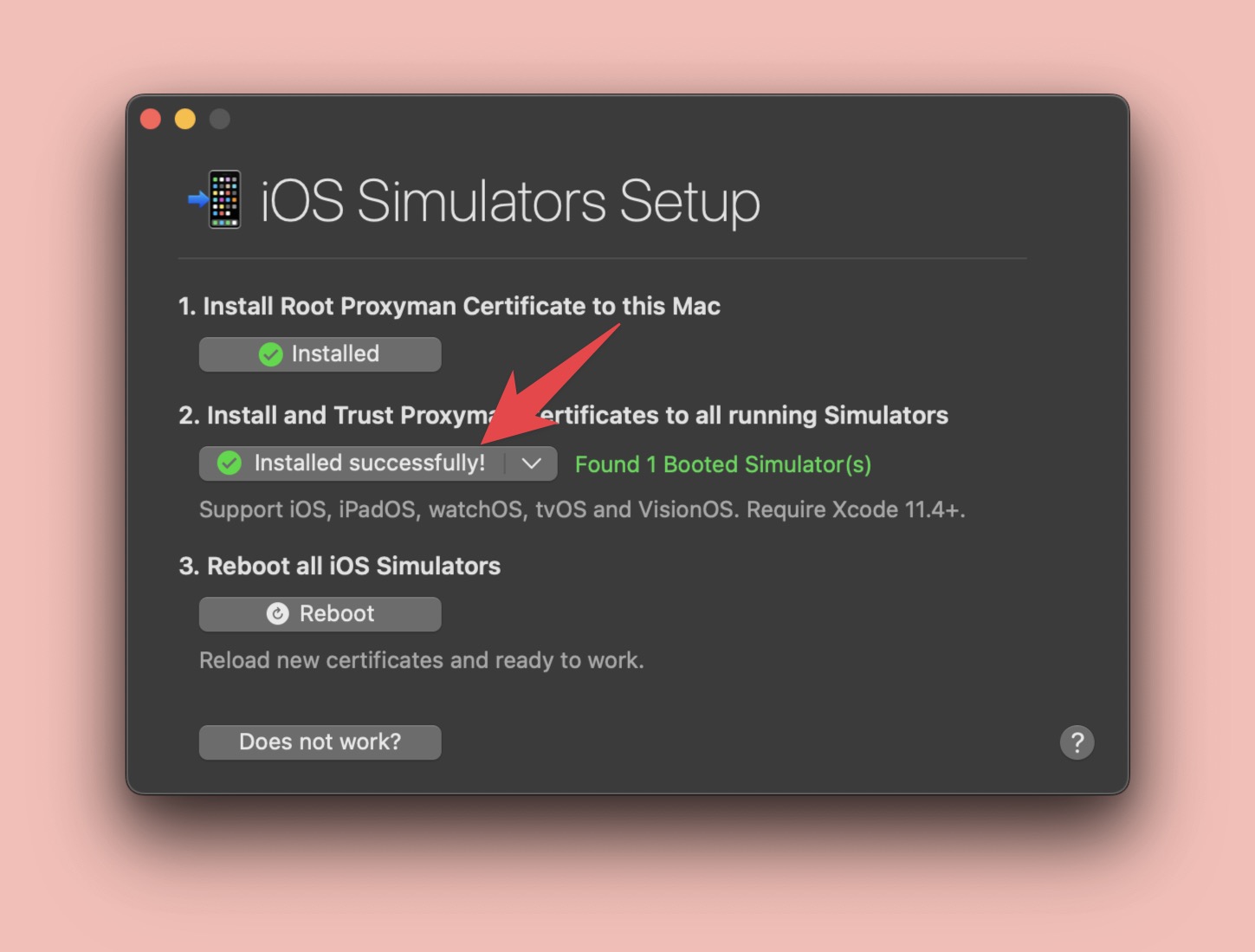
- Done. Try to reload your Metro bundler -> Start capturing SSL traffic
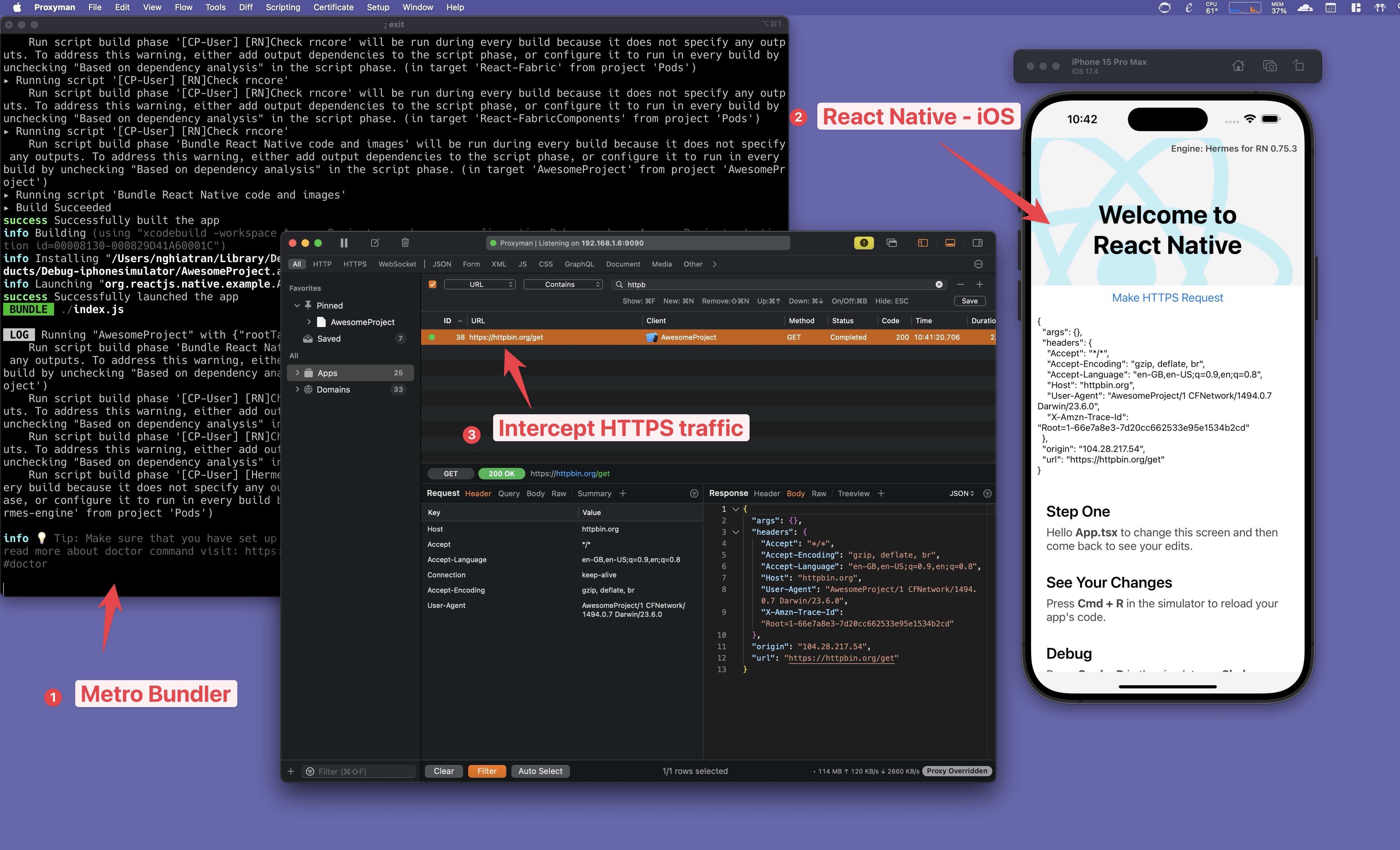
What's next?
- To intercept on a real iOS device, you can check out this document: How to capture HTTPS traffic from iOS real device with Proxyman
Use 10.0.2.2 for the host Mac only from the standard Android emulator. A physical Android device needs the Mac IP on the same network. Keep network_security_config.xml limited to debug builds, and do not make a release app trust every user-added certificate.

Noah Tran